
How to Use a Coupon Code
Every coupon on CouponZania works the same way at checkout, no matter which store it belongs to. This page walks through the full process once, with real screenshots of each step, so you never have to guess.
Codes vs. Deals
Offers on CouponZania come in two kinds, and they work differently. A "Show Code" offer has an actual code you copy and paste — that's what the six steps below cover.
A "Get Deal" offer has no code at all. The link itself is the discount — clicking it takes you straight to a page where the reduced price is already applied, so there's nothing to copy, paste, or watch apply. If you see "Get Deal" instead of "Show Code," you can skip straight to shopping.
What the Coloured Labels Mean
Some offers carry a small coloured label next to their title. The label names the kind of offer, and the colour tells you who it is for or when it applies.
The same labels appear as filters above the offer list, so one tap shows only first order codes or only the offers in a sale that is running now.
- First Order New customers: For your first order with this store.
- Buy 1 Get 1 Bundle offers: Buy one, get one or a free item with your order.
- Student Who qualifies: Only for a group, such as students or the military; the store checks.
- Free Shipping Other offer types: A type of offer, such as free shipping.
- Diwali Live Sale running now: Part of a sale event that is running today.
- Black Friday Sale event: Part of a yearly sale event that is not running today.
1. Find Your Offer
Open the store's page on CouponZania and browse the list of active coupons and deals. Each card shows the discount and how many people have used it recently.
Tap "Show Details" on any offer first — it expands to list exactly what the discount applies to, so you know it fits your cart before you leave the page.
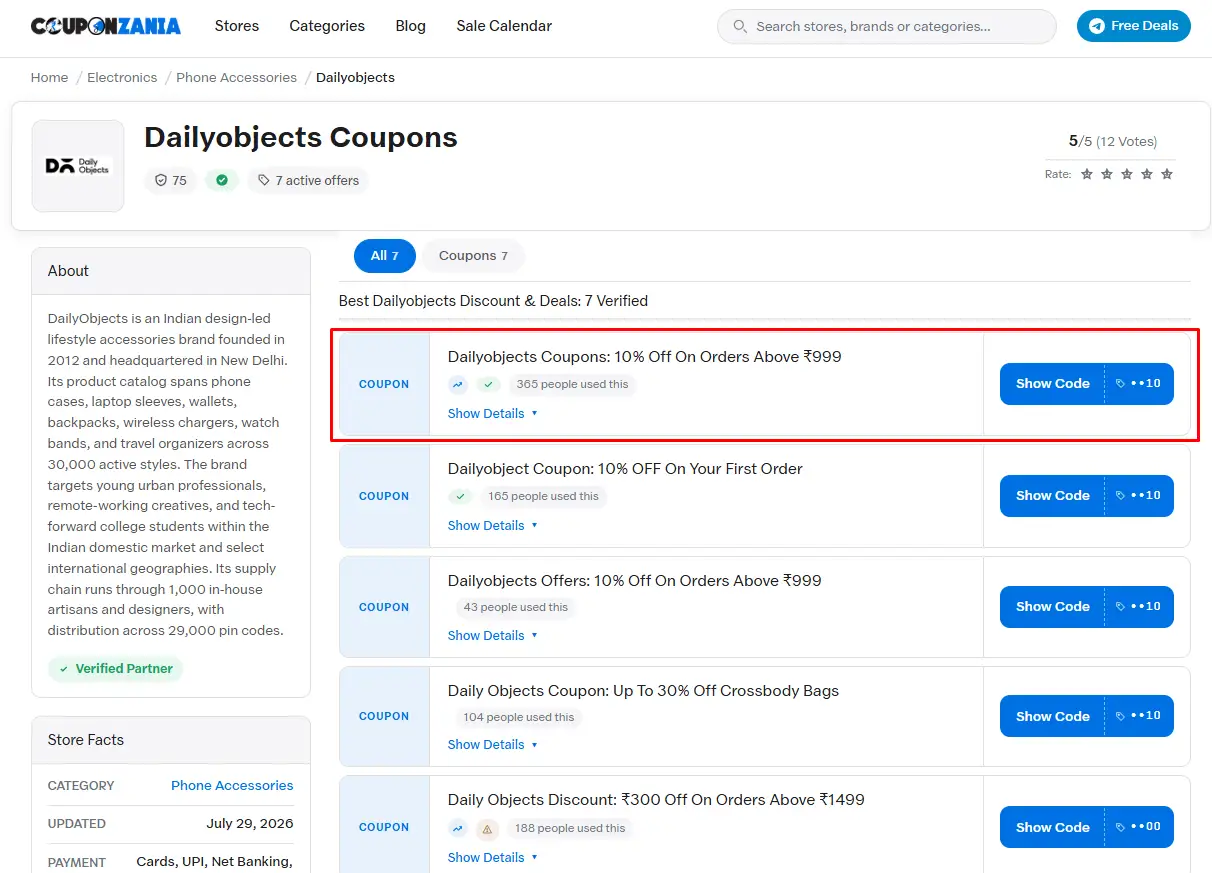
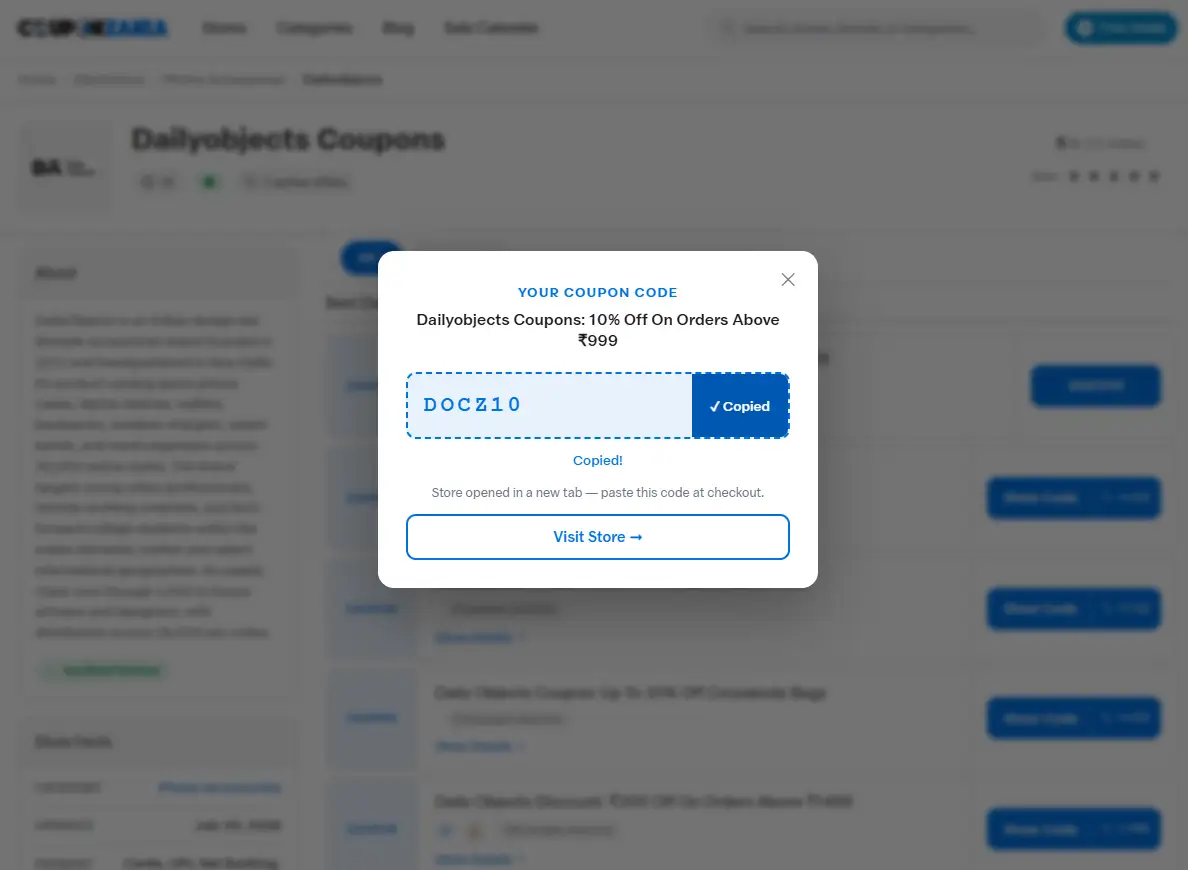
2. Click "Get Code"
The code copies to your clipboard automatically the moment you click, and the store opens in a new tab. You don't need to manually select or copy anything.
3. Go to Checkout
On the store's own site, add the items you want to your cart. Layouts vary by store, but the coupon field is almost always near the order total, on the cart page or the payment step.
4. Paste the Code
Enter it in the promo or coupon field at checkout and apply it. This is what a successfully applied code looks like on the store's own cart page:
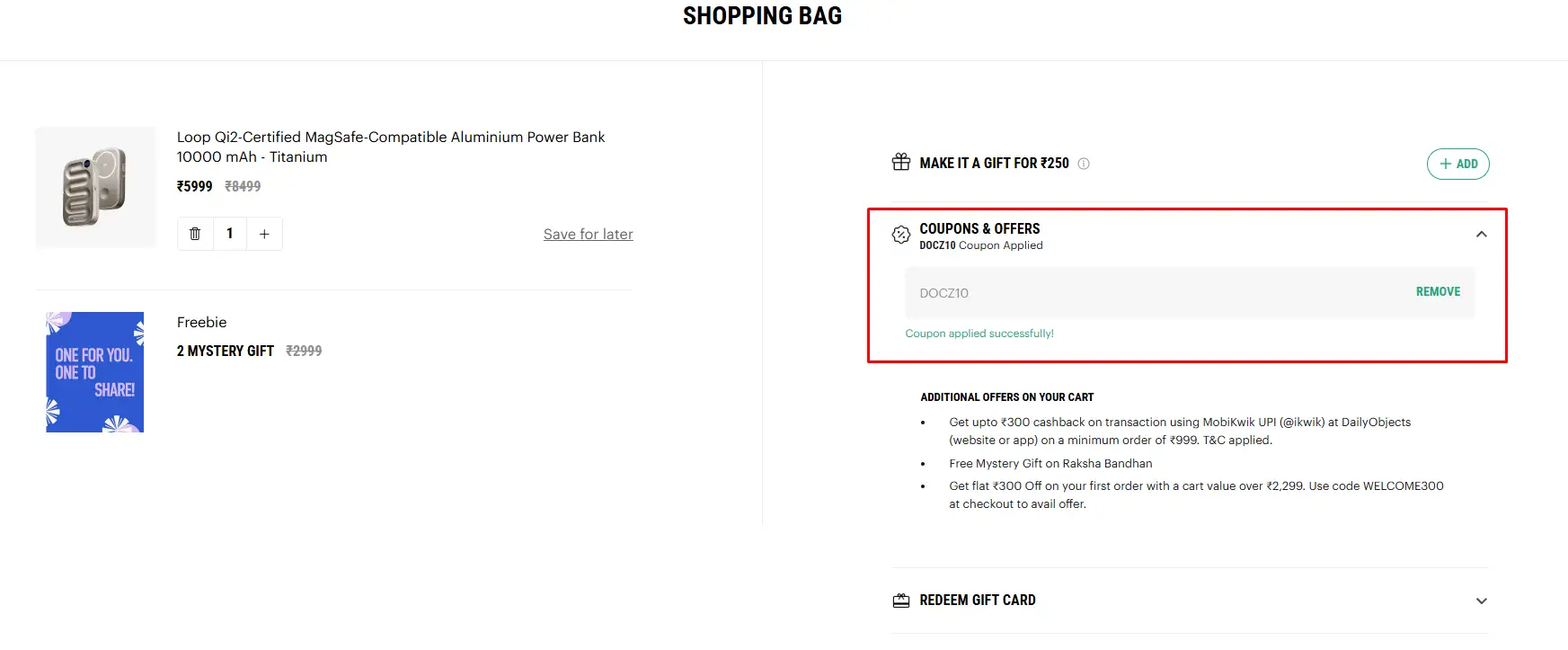
5. Watch Discount Apply
Your savings reflect instantly in the order total, before you enter any payment details — you can see the "Coupon applied successfully" confirmation in the screenshot above.
6. Report If It Fails
A rejected code is usually one of a few things: it already expired, the cart doesn't meet a minimum-spend condition, the offer excludes the items in your cart, or it's restricted to new customers only.
Check the offer's own conditions first (the "Show Details" panel from Step 1) — most rejections trace back to one of those, not a broken code. If it still doesn't work, use the feedback buttons on the offer.
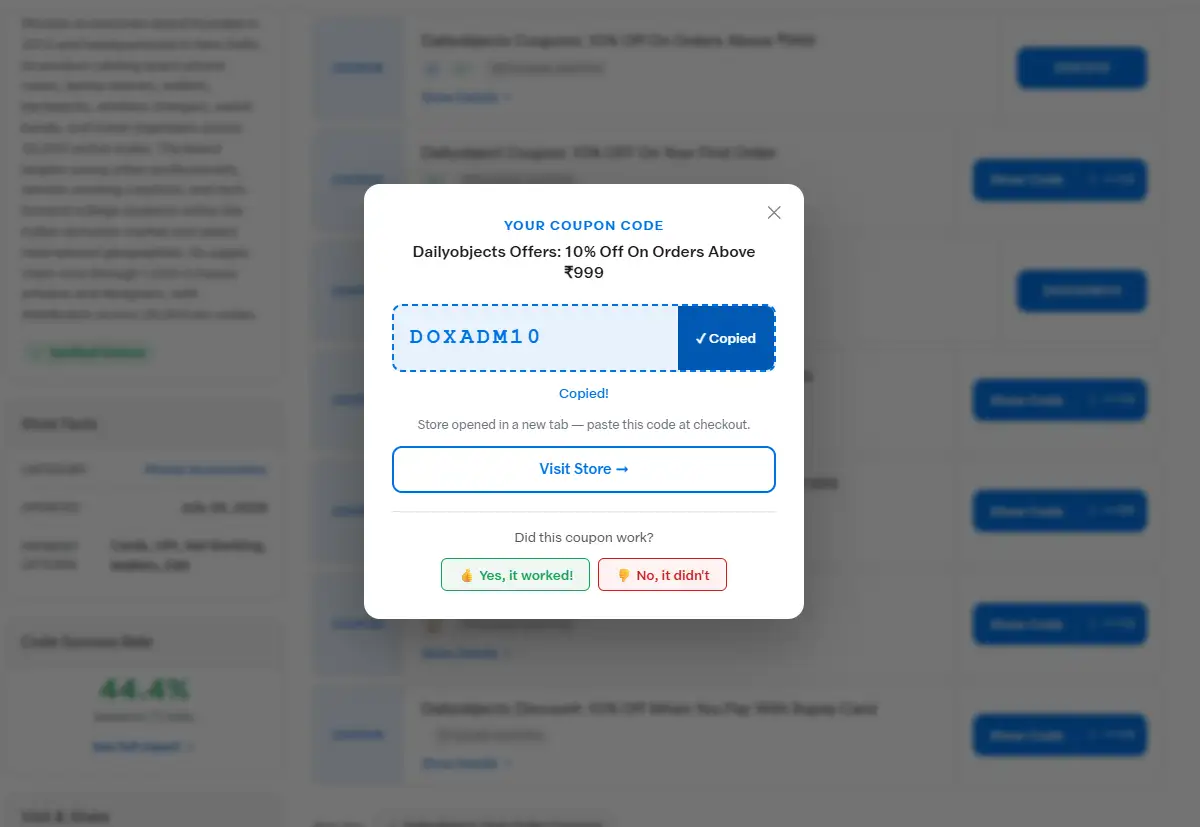
One More Thing: Auto-Apply Extensions
If you have a coupon-finding browser extension installed, it can silently override a code you pasted manually with one of its own — including a worse or expired one, right at the last second before you pay.
If your discount looks wrong at the final total, check which code is actually showing in the coupon field before you complete the order.
Quick Reference
- 1 Find Your Offer Browse the coupons and deals for the store above.
- 2 Click "Get Code" The code copies automatically and the store opens in a new tab.
- 3 Go to Checkout Add your items to the cart on the store's site.
- 4 Paste the Code Enter it in the promo or coupon field at checkout.
- 5 Watch Discount Apply Your savings reflect instantly in the order total.
- 6 Report If It Fails Use the feedback button on the offer. Flagged codes are retested within 1–4 hours.
Frequently Asked Questions
Do I need a CouponZania account to use a coupon?
No. Codes are visible and copyable without signing up or logging in.
Can I use more than one coupon code on the same order?
Usually not. Most stores only accept one code per order — if a second code doesn't apply, that's a rule on the store's side, not a broken code.
A code worked on the website but not in the store's app. Why?
Store apps and websites often run separate coupon systems. A code active on one isn't guaranteed to be recognized on the other.
Are CouponZania coupon codes free to use?
Yes. There's no fee, account, or subscription required to see or use any code on the site.